Nordvpn browser extension for microsoft edge a comprehensive guide for 2026
Nordvpn browser extension for microsoft edge a comprehensive guide for 2026: All-in-One VPN Tips, Setup, and Best Practices
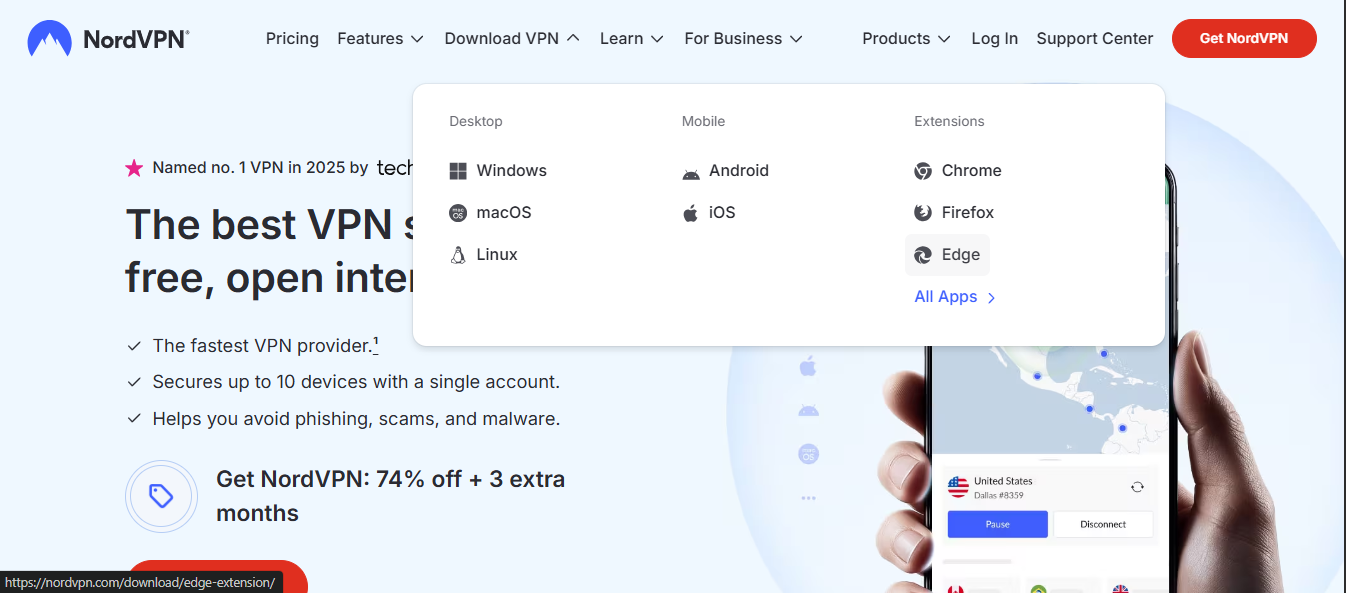
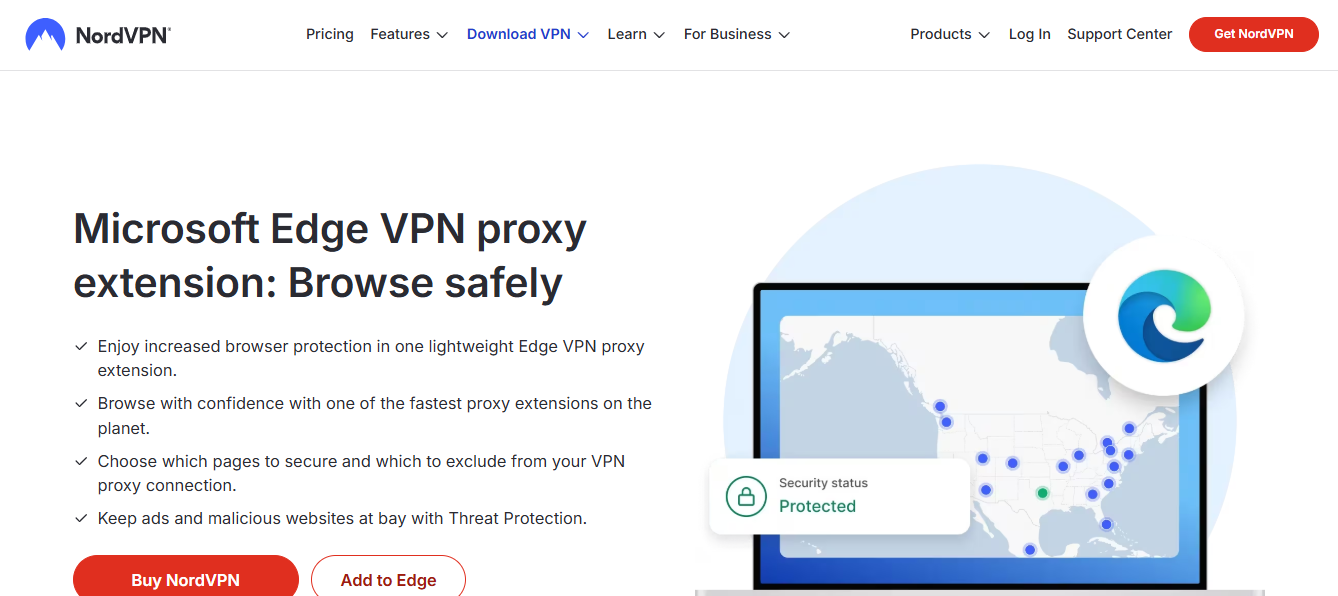
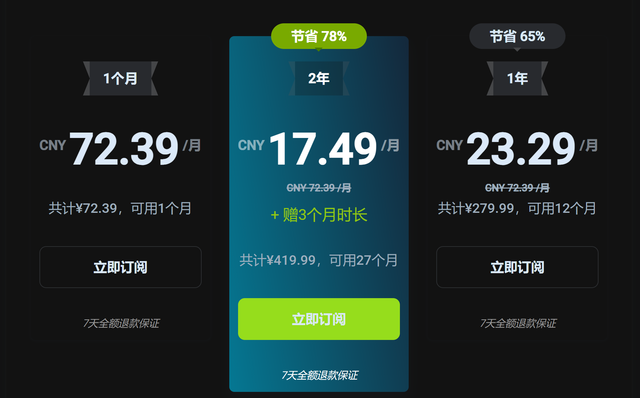
Nordvpn browser extension for microsoft edge a comprehensive guide for 2026 is your go-to resource for getting the most out of NordVPN's Edge extension. In this guide, you’ll find practical steps, real-world tips, and up-to-date information to help you stay private, secure, and fast online. If you’re here, you probably want a quick path to VPN peace of mind while browsing with Edge, plus a few expert tricks to squeeze every last drop of speed and protection. Quick note: if you’re ready to take action now, check out the NordVPN deal here: NordVPN. It’s a simple way to get started with premium protection at a great price.


What you’ll learn in this guide
- How to install and activate the NordVPN Edge extension in minutes
- Key features of the NordVPN Edge extension and when to use them
- Safety, privacy, and performance tips for everyday browsing
- Common gotchas and troubleshooting steps
- Real-world use cases with quick setup templates
- A handy FAQ to solve the most frequent questions
Introduction: quick facts and a practical plan
- Quick fact: NordVPN’s Edge extension encrypts your traffic, hides your IP, and helps you bypass geo-restrictions without changing your regular browsing habits.
- Plan for this guide: install, configure, optimize, and troubleshoot. We’ll mix step-by-step guides, bullets, and quick templates so you can skim or go deep as you like.
Useful resources and URLs text format, not clickable
- NordVPN official site - nordvpn.com
- Microsoft Edge support - support.microsoft.com
- NordVPN help center - support.nordvpn.com
- Data privacy and security basics - en.wikipedia.org/wiki/Data_privacy
- How VPNs work - en.wikipedia.org/wiki/Virtual_private_network
Why use NordVPN browser extension for Microsoft Edge
- Privacy protection in one click: masks your IP, blocks trackers, and encrypts traffic from Edge.
- Bypass geo-restrictions for streaming and content access.
- Safe public Wi‑Fi: adds a protective layer on unfamiliar networks.
- Split tunneling on some plans: choose which sites go through the VPN.
Key features you’ll want to know
- Encrypted browsing: AES-256 bit encryption ensures your data stays private.
- No-logs promise: NordVPN states it doesn’t log user activity.
- Kill switch: stops all internet traffic if the VPN drops, preventing leaks.
- CyberSec: blocks malware and annoying ads in some plans.
- CyberSec Threat Protection: blocks risky sites before you click.
- Auto-connect: automatically connects to a default server when Edge loads.
- Server switching: switch servers on the fly for faster performance or access to different regions.
- Split tunneling where supported: route only certain sites through the VPN.
Step-by-step setup guide
- Install the Edge extension from the Microsoft Edge Add-ons store.
- Sign in with your NordVPN account or create one.
- Enable the extension in Edge and grant required permissions.
- Choose a server or enable Quick Connect for automatic best results.
- Turn on CyberSec if you want extra protection against malware and trackers.
- Customize auto-connect and split tunneling if needed.
- Test your connection by visiting a site that shows your new IP or by using an IP-check service like whatismyipaddress.com.
Quick-start checklist one-page
- Edge extension installed
- Signed in to NordVPN
- Server connected or Quick Connect enabled
- CyberSec enabled optional
- Auto-connect configured
- Split tunneling set up optional
- IP address verified
How to choose the right server
- Close to your location for speed
- Specific country for geo-access or content libraries
- Specialty servers for P2P or streaming
- Use Quick Connect for automatic best option when in doubt
Safety tips for Edge users
- Always verify you’re on a NordVPN server by checking the extension status.
- Enable the kill switch when you’re on vulnerable networks public Wi‑Fi, coffee shops, airports.
- Avoid exposing sensitive accounts on untrusted networks; use the VPN consistently.
- Keep the Edge extension and browser updated to the latest versions.
Performance optimization strategies
- Prefer servers closer to your physical location for lower latency.
- If streaming buffers, switch to a different server or a dedicated streaming server if available.
- Use the fastest protocol setting supported by NordVPN for Edge OpenVPN UDP typically offers a good balance of speed and security.
- Disable other bandwidth-heavy applications while testing new servers to measure true speed.
Common issues and quick fixes
- Issue: VPN not connecting
- Fix: Check login status, ensure the extension has permission, try a different server, restart Edge.
- Issue: Slow speeds
- Fix: Change servers, disable heavy browser extensions, switch to a closer location.
- Issue: IP leaks detected
- Fix: Enable the kill switch, update to the latest version, verify DNS settings.
- Issue: Streaming errors
- Fix: Switch to a server optimized for streaming, clear cache, try again.
Security and privacy considerations
- End-to-end encryption protects data from your device to the VPN server.
- Your VPN provider can see metadata about connections, but NordVPN has a no-logs policy per their documentation. Always review current privacy policies for the latest terms.
- When using Edge on mobile devices, ensure you’re on a secure, trusted network or cellular data to minimize risk.
Network-wide tips for households and shared devices
- If you share a computer with others, create separate Edge profiles or use a strong, unique password for NordVPN access.
- Use a VPN-connected router if you want all devices in your home protected by default.
- Regularly review connected devices in your NordVPN account to spot unauthorized devices.
Comparisons: Edge extension vs. native app
- Edge extension is lightweight and convenient for browser-specific protection and geo-access.
- Native apps provide system-wide protection; use both if you need comprehensive coverage Edge for quick browser protection; app for all traffic.
Real-world use cases
- Student study sessions: access library resources from different regions without sacrificing speed.
- Remote workers on public Wi‑Fi: keep sensitive work data protected while browsing.
- Content creators: bypass geo-restrictions to research and review content with minimal lag.
Data usage and privacy data
- VPNs add overhead, which can reduce raw speeds by roughly 5-20% depending on server and protocol.
- NordVPN’s Edge extension is designed to minimize overhead while maintaining strong security.
- Privacy: using VPN reduces exposure to ISP tracking and targeted advertising during Edge sessions.
Troubleshooting common Edge-specific issues
- Issue: Edge extension not appearing in menu
- Solution: Reinstall the extension and restart Edge; ensure it’s enabled in Edge settings.
- Issue: Extension shows “Not connected”
- Solution: Check login status; sign out and back in; try Quick Connect again.
- Issue: Edge extension asks for permissions repeatedly
- Solution: Confirm you’re granting only necessary permissions; consider reinstalling.
Best practices for long-term use
- Regularly update to the latest version of Edge and the NordVPN extension.
- Review privacy settings monthly to ensure no unintended changes.
- Maintain a clean browser profile to prevent conflicts with the VPN extension.
- Use strong, unique credentials for your NordVPN account.
Data privacy and regulator considerations
- VPNs are governed by the jurisdiction of their parent company and the locations of their servers.
- NordVPN operates under Panama’s jurisdiction, which is often seen as favorable for privacy, but always verify current legal coverage and data retention policies.
Accessibility and usability notes
- The Edge extension is designed to be accessible with keyboard shortcuts and screen reader support.
- If you rely on accessibility features, test VPN settings with your preferred accessibility tools to ensure compatibility.
Advanced configurations if you want to go deeper
- Custom DNS settings: you can sometimes configure DNS within the extension for extra privacy.
- Kill switch customization: enable/disable depending on whether you’re actively engaged in sensitive browsing.
- Split tunneling: route critical sites through VPN, while other sites use direct connection.
Security hygiene for VPN users
- Use two-factor authentication 2FA on your NordVPN account to prevent unauthorized access.
- Regularly review login activity in your NordVPN account.
- Avoid saving credentials on shared devices; use a password manager with strong master password.
Summary: what to remember
- NordVPN Edge extension is a quick, secure way to protect Edge browsing.
- Install, sign in, enable auto-connect, and choose a reliable server for best results.
- Turn on CyberSec for extra protection and use the kill switch during risky networks.
- Stay up-to-date with updates, test speeds, and troubleshoot using the steps above.
| VPN | Obfuscation | From / month | Plan | Free plan | Refund | Alipay | UnionPay | Crypto | Website opens in China | Trustpilot | |
|---|---|---|---|---|---|---|---|---|---|---|---|
 NordVPN | Turn on manually Obfuscated Servers / NordWhisper | $3.49/mo | 27 months: $94.23 | No | 30 days | ? | ✗ | ✓ | ✓ | ✗ Blocked | 4.2/5 (51,628 reviews) |
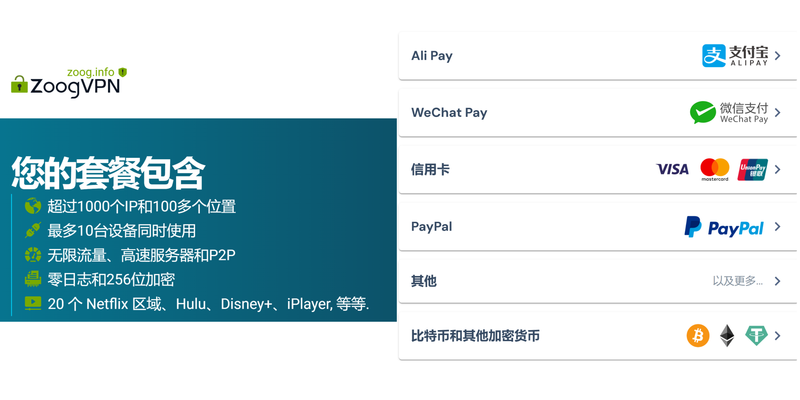
 ZoogVPN | Turn on manually Shadow | $2.49/mo | 27 months: $59.99 | Yes | 7 days | ✓ | ✓ | ✓ | ✓ | Official site blocked; our special link opens (4.4 s) | 4.2/5 (195 reviews) |
 ExpressVPN | ✓ On by default all servers | $3.00/mo | 28 months: $84 | No | 30 days | ✗ | ✗ | ✓ | ✗ | ✗ Blocked | 4.4/5 (29,706 reviews) |
 Surfshark | ✓ On by default Camouflage, with OpenVPN | See site | See site | No | 30 days | ✗ | ✗ | ✗ | ✓ | ✗ Blocked | 4.3/5 (31,823 reviews) |
 Proton VPN | Turn on manually Stealth, free plan too | $2.99/mo | 12 months: $35.88 | Yes | 30 days | ✗ | ✗ | ✗ | ✓ | ✗ Blocked | 2.1/5 (1,040 reviews) |
 Astrill VPN | Turn on manually StealthVPN / OpenWeb | $12.50/mo | 24 months: $300 | No | See site | ✗ | ✗ | ✗ | ✓ | ✗ Blocked | 1.3/5 (110 reviews) |
 Private Internet Access | Turn on manually Shadowsocks, OpenVPN only | $2.03/mo | 40 months: $81.2 | No | 30 days | ✗ | ✗ | ✗ | ✗ | ✗ Blocked | 4.2/5 (11,033 reviews) |
 CyberGhost | Turn on manually selected servers | $2.19/mo | 28 months: $61.32 | No | 45 days | ✗ | ✗ | ✗ | ✓ | ✗ Blocked | 4.0/5 (24,178 reviews) |
 PureVPN | Turn on manually switch to OpenVPN | $1.69/mo | 60 months: $101.55 | No | 31 days | ? | ? | ✗ | ✓ | ✗ Blocked | 4.4/5 (17,994 reviews) |
 AdGuard VPN | ✓ On by default TrustTunnel | $2.99/mo | 24 months: $71.76 | Yes | 30 days | ✓ | ✗ | ✓ | ✓ | Official site blocked; our special link opens (3.7 s) | 4.3/5 (290 reviews) |
 Mullvad | Turn on manually QUIC / Shadowsocks / LWO | $5.61/mo | €5/mo | No | 14 days | ✗ | ✗ | ✗ | ✓ | ✗ Blocked | 3.2/5 (192 reviews) |
 Windscribe | Turn on manually Stealth / WStunnel | $5.75/mo | 12 months: $69 | Yes | See site | ✗ | ✗ | ✗ | ✓ | ✗ Blocked | 4.7/5 (13,355 reviews) |
 StrongVPN | Turn on manually Scramble, OpenVPN TCP | See site | See site | No | 30 days | ✓ | ✗ | ✗ | ✗ | ✗ Blocked | 4.4/5 (2,695 reviews) |
 LightXtreme 闪连 | Not listed | $7.08/mo | 12 months: $84.99 | Yes | 30 days | ✓ | ✓ | ✓ | ✓ | ✓ Yes (3.5 s) | No page |
Prices checked 2026-11-10 on each vendor's pricing page (cheapest long plan, USD). Check the vendor's checkout for the final price.
Obfuscation checked 2026-11-14 on each vendor's site and help center: "on by default" = nothing to set; "turn on manually" = switch protocol or mode in settings; "not listed" = the vendor describes no obfuscation.
Payment methods checked 2026-11-10 on each vendor's payment pages: all 14 take cards and PayPal; ✗ = not listed, ? = the vendor's own pages disagree.
China access: whether the official website opens from mainland China networks (tests the website only, not the VPN connection). Last checked 2026-11-18 01:02 Beijing time.
Trustpilot score and review count checked 2026-11-10.
Frequently Asked Questions
What is NordVPN browser extension for Microsoft Edge?
The NordVPN browser extension for Microsoft Edge is a lightweight add-on that encrypts Edge traffic, hides your IP, blocks trackers, and helps you access geo-restricted content without leaving Edge.
How do I install NordVPN on Edge?
Open Microsoft Edge, go to the Edge Add-ons store, search for NordVPN, click Add to Edge, sign in to your NordVPN account, and enable the extension.
Do I need a NordVPN subscription to use the Edge extension?
Yes. The Edge extension works with a NordVPN account, and some features may depend on your plan.
Does the Edge extension protect my entire device or just Edge?
The Edge extension protects only the traffic that goes through Edge. For full-device protection, you’d need the NordVPN app for your operating system or a VPN-enabled router.
How do I enable auto-connect in Edge?
Open the NordVPN extension, turn on Auto-Connect, and choose a preferred server or let Quick Connect pick the best option automatically. Forticlient VPN Not Working On Mac Heres How To Fix It: Quick Fixes, Expert Tips, And Troubleshooting For macOS Users
Is CyberSec included in Edge extension?
CyberSec is available on some NordVPN plans and can be enabled from the extension to block malware and ads.
Can I use split tunneling with the Edge extension?
Split tunneling is available on certain plans and configurations; check the extension settings to see if it’s supported for your account.
Will NordVPN slow down my browsing in Edge?
Some speed impact is normal due to encryption and routing through VPN servers. You can minimize this by choosing nearby servers and using the fastest protocol supported.
How do I know the VPN is working in Edge?
Look for the NordVPN extension badge indicating you’re connected, and visit an IP-check site to confirm your IP has changed and is protected.
What should I do if Edge won’t connect to NordVPN?
Try signing out and back in, restarting Edge, selecting a different server, and ensuring you have an active subscription. If problems persist, contact NordVPN support. Norton secure vpn on firestick your complete download setup guide
How safe is NordVPN on Edge?
NordVPN uses strong encryption and a no-logs policy on paper, combined with privacy features like CyberSec. Always keep the extension and browser updated for the latest protections.
Can I use NordVPN Edge extension on multiple devices?
Yes, you can sign in on multiple devices, but some plans restrict simultaneous connections. Check your plan’s limits.
Is NordVPN compatible with other browsers in addition to Edge?
Yes, NordVPN also provides extensions for other browsers and a full app for devices on Windows, macOS, iOS, and Android.
How long does setup take?
Typically, setup takes about 5–10 minutes, depending on how comfortable you are with browser extensions and account sign-in.
Where can I learn more about NordVPN Edge extension updates?
Visit NordVPN’s official support center and blog for the latest release notes and feature updates. Setting up an l2tp vpn client on android a step by step guide to Secure Your Mobile Connection and Stay Private